Having Moodle installed and configured is only half the journey toward launching training in your company. The next step is to bring real content into it: courses from a previous system, ready-made SCORM packages, or a list of employees who need access to the platform. In this article, we walk through this process step by step — and what to do if you don’t have any training materials yet at all.
1. Before You Start: Identify Your Starting Point for Importing into Moodle
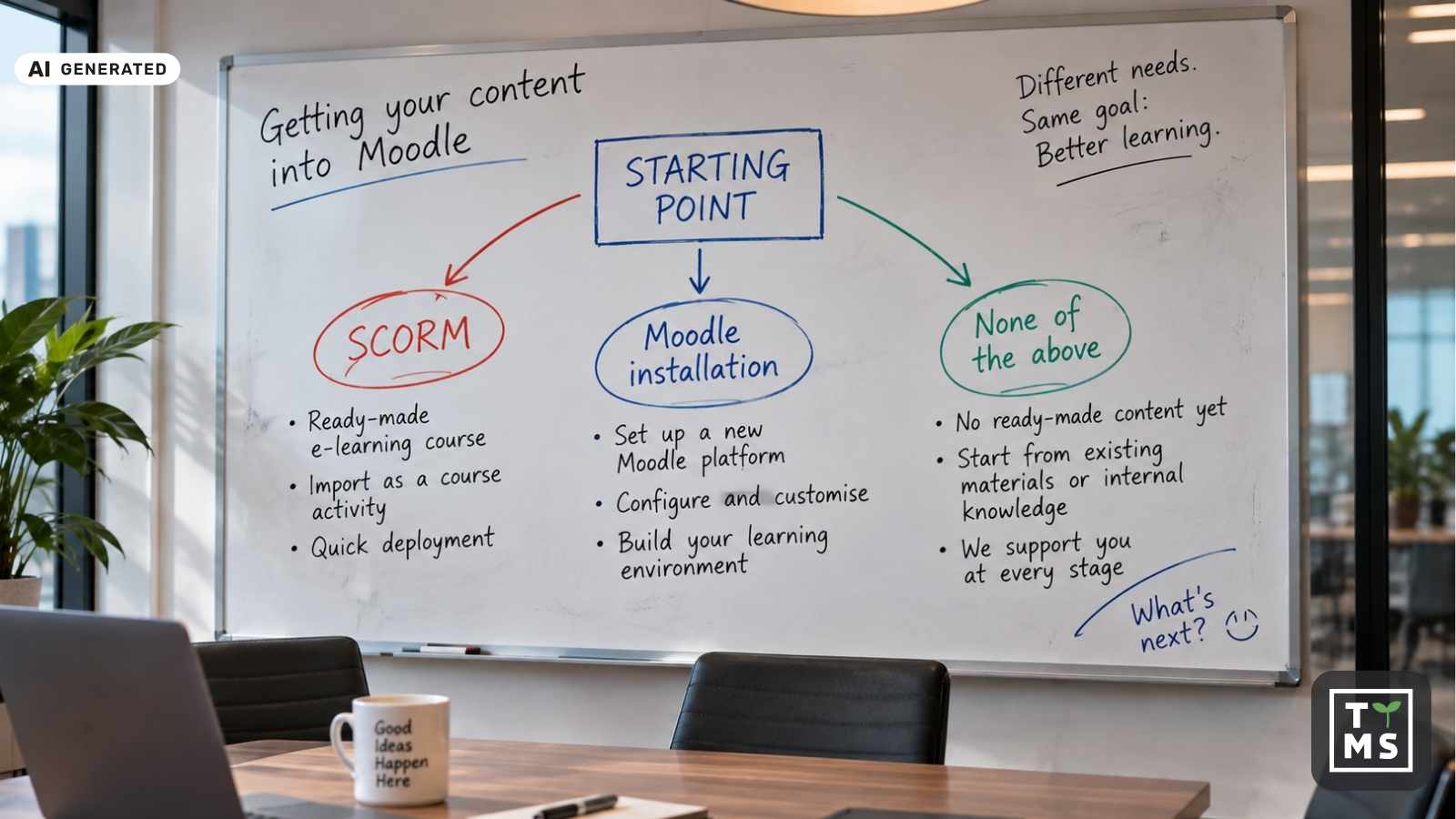
The import method depends on exactly what you want to bring into Moodle. In practice, companies find themselves in one of three situations:
- You already have a ready-made course in SCORM format – produced earlier, purchased from an external provider, or exported from another LMS. In this case, you simply need to import it as an activity within a course.
- You have a full backup of a course from another Moodle instance (an .mbz file) – e.g., from a test environment, a previous deployment, or from a company that previously managed your platform. In this case, you import the entire course along with its structure.
- You don’t have either of the above yet – instead, you have presentations, PDF procedures, onboarding recordings, or simply knowledge in your employees’ heads that still needs to be turned into a course. This is the most common situation right after deployment and requires a different approach, which we cover in the final section.
The instructions below apply to the first two cases. Option names and their locations may vary slightly depending on the Moodle version, but the main stages of the process remain similar. For certainty, it’s also worth checking the current official Moodle documentation. You’ll find links to the relevant materials further in the article.
2. Importing an Entire Course from a Backup File (.mbz)
If you have an .mbz file – a full course backup including section structure, activities, and (optionally) files – the process looks as follows:
- Log in to Moodle with teacher or manager permissions and go to the course you want to upload content into (this can be a newly created, empty course).
- From the course menu, select More → Course reuse → Restore.
- Select the .mbz file – you can upload it from your computer or point to a file already located in the course’s file area.
- Moodle will guide you through several screens: file confirmation, restore settings (whether to merge the content with the existing course or overwrite it entirely), and selection of which elements should be restored.
- At the review stage, you’ll see a full list of what will be imported. This is your last chance to go back and make corrections.
- Once confirmed, the restore process runs in the background – depending on the size of the course, this can take anywhere from a few dozen seconds to several minutes.
Important note: a full backup usually does not include user data such as quiz results or forum posts, unless this option was deliberately selected when creating the backup. This is a safeguard that protects against accidentally transferring personal data between environments.
3. Importing Individual Elements from Another Course
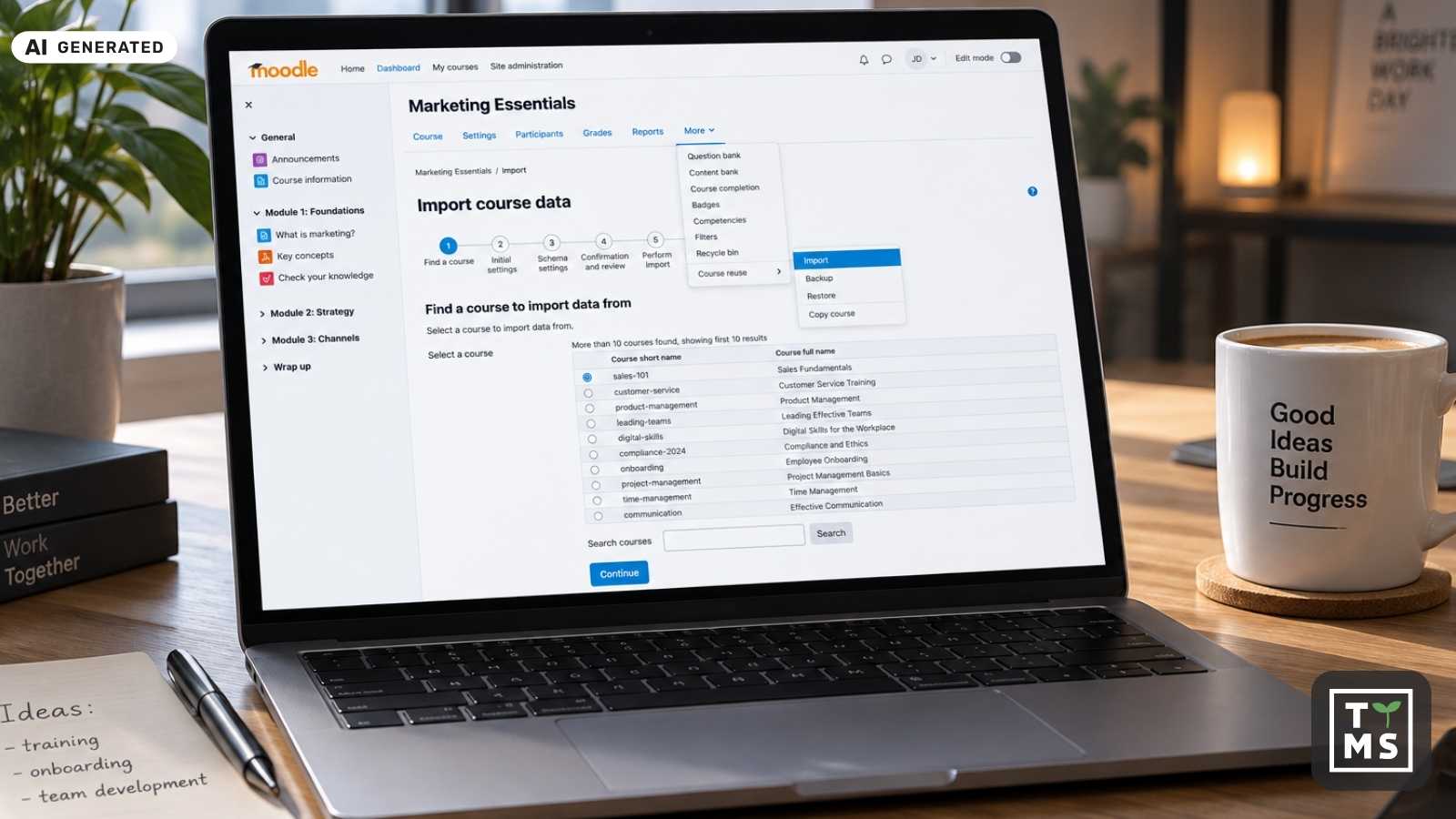
If you don’t need an entire course, but only selected materials – e.g., a single module, a quiz, or a set of files – Moodle offers a separate Import feature, available in the same place as Restore:
- Go to the destination course and select More → Course reuse → Import.
- Search for the source course (you must have editing permissions in it).
- Select which types of elements you want to transfer: activities, blocks, filters.
- On the next screen, select the specific items – you can choose a single quiz or file instead of an entire section.
- Confirm the import and wait for the completion message.
This method is convenient when you’re building several similar courses (e.g., for different departments) and want to reuse some shared materials instead of creating them from scratch each time.
4. Importing a SCORM Package as a Course Activity
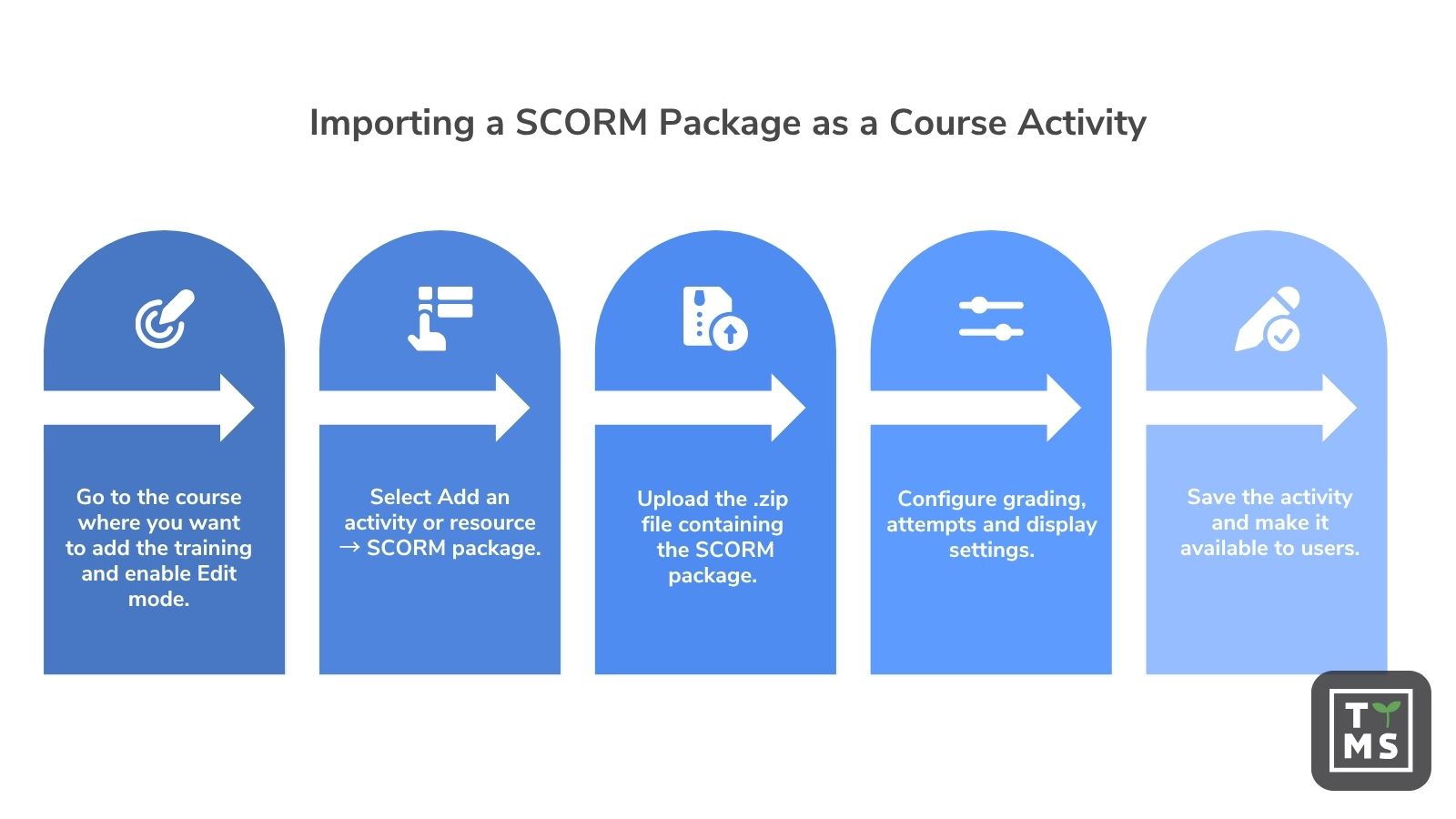
A SCORM package is the most popular format for a ready-made e-learning course – regardless of whether it was created by an external provider, an authoring tool, or exported from another system. The import looks different than for a course backup, because SCORM here is a single activity within a course, not an entire course:
- Go to the course where the training should appear and turn on editing mode.
- In the chosen section, click Add an activity or resource and select SCORM package from the list.
- Upload the .zip file containing the SCORM package.
- Configure the basic settings: grading method (e.g., based on the highest score or the most recent attempt), the number of allowed attempts, and how the content is displayed (in a new window or within the course page).
- Save and return to the course – you’ll see the new activity, ready to be opened by users.
It’s worth testing the package from a test account before making it available to the target group – especially if the SCORM package comes from an external source and you’re not sure about its compatibility with your Moodle version.
5. Importing a User List and Assigning Roles
Materials are only one side of the equation – the other is the people who will use them. Instead of adding each employee manually, you can import a list in bulk:
- Prepare a CSV file with columns such as first name, last name, email address, and username (the exact required format depends on the platform’s configuration).
- Go to Site administration → Users → Upload users.
- Upload the CSV file and review the preview – Moodle will show how it interprets each column and whether there are any data errors.
- Confirm the import. New accounts will be created automatically, and if the file included the appropriate columns, users can be immediately enrolled in the specified courses.
- Separately assign roles (e.g., teacher, participant, manager) at the course or category level, if the import didn’t already do so.
If the company uses SSO login (e.g., via Azure AD or Microsoft 365), part of this process can be automated through account synchronization – however, that’s a separate topic beyond manual import.
6. What to Do When You Don’t Have Any Materials to Import Yet
This is the most common scenario right after deployment: the platform works correctly from a technical standpoint, but there’s nothing to upload to it yet. The company has knowledge – procedures, presentations, recordings – but not in a format that Moodle recognizes as a ready-made course.
In this situation, there are two paths:
- Prepare the content yourself, with the help of the AI4E-learning tool. The team defines the training goal and provides the source materials they have (documents, presentations, recordings), and the tool generates a course structure from them, complete with audio narration and quizzes, exporting a ready SCORM package – in exactly the format that can be imported using the method described above.
- Commission course production to the TTMS team. If you need full graphic design, animation, or language versions, custom production covers the entire process: from the script, through graphics and interactions, to export and testing on the platform.
Both paths lead to the same end result: a package ready to be uploaded to the platform you already have configured.
7. Summary
Launching Moodle is an important step, but that’s when the practical part of the whole process really begins: transferring existing courses, organizing users, and populating the platform with content that employees will actually use. The starting point can be different for every organization. Sometimes it’s ready-made SCORM packages and courses from a previous LMS, and sometimes it’s presentations, documents, procedures, and expert knowledge that still needs to be turned into training.
That’s why it’s worth looking at Moodle as part of a larger learning ecosystem within the organization. TTMS can support the entire process: from needs analysis, Moodle deployment and configuration, through migration and integrations, to preparing and launching training content. If source materials already exist, AI4E-learning can additionally help turn them into ready-made courses and significantly shorten the path from company knowledge to training available to employees.
If you’re currently wondering how to move from a deployed platform to a fully functioning training environment, let’s talk about your starting point. We’ll help you determine the right scope of implementation and the next steps tailored to your organization’s materials, systems, and needs.
FAQ
Does importing a course into Moodle also transfer user results and history?
It depends on how the course is transferred. Importing content from another Moodle course does not include user data, such as forum posts. When restoring a course from a backup, the scope of transferred information depends on the backup’s content and the available permissions.
What’s the maximum size of a SCORM file that can be uploaded to Moodle?
This depends on the settings of the specific installation – the upload file size limit configured on the server and within Moodle itself. If needed, this limit can be raised at the platform configuration level.
Can I import a course from a completely different LMS, not just from Moodle?
It depends on the format in which the source system exports data. If it provides a SCORM package, it can be imported as an activity in a Moodle course. Fully transferring the course structure, roles, and data from another LMS is usually a separate migration project that requires the scope to be determined in advance.
What should I do if the import fails with an error?
There can be many causes, ranging from file size limits and environment configuration to compatibility issues when restoring course backups. In such a case, it’s worth analyzing the specific error message along with the Moodle environment’s configuration.
Can an imported SCORM package be edited later directly in Moodle?
No – a SCORM package is a closed content package, and Moodle treats it as a ready-made file to be played back, not editable material. To make changes, you need to modify the course in the tool where it was created (e.g., in AI4E-learning or another authoring tool), export it again, and replace the previous version of the activity in Moodle.