Did you know? Over 60% of Fortune 500 companies have already adopted Microsoft Copilot, and 77% of early adopters report it makes them more productive. AI isn’t a future vision-it’s here now, transforming daily work. Microsoft 365 Copilot is an AI-powered assistant integrated into the tools you use every day (Word, Excel, Outlook, Teams, and more), helping you work smarter and faster. So, what are the best ways to use Copilot at work? Below, we’ll explore 10 practical use cases that show how to best use Copilot for work across various apps and job functions (marketing, finance, HR, operations). Let’s dive in!
1. Summarize Emails, Chats, and Meetings with Copilot (Outlook & Teams)
One of the best ways to use Copilot at work is to tame information overload. Copilot excels at summarizing lengthy communications, whether it’s an endless email thread in Outlook or a busy Teams channel conversation. In Outlook, for example, you can simply open a long thread and click “Summarize” – Copilot will generate a concise overview of the key points right at the top of the email. This is incredibly useful when you’re added to a long back-and-forth or returning from PTO. In fact, 43% of users have used Copilot to summarize email threads and organize their inboxes in Outlook, showing how much it helps with email management. Likewise, in Microsoft Teams, Copilot can recap what happened in a meeting or a chat. Over 70% of Copilot-enabled organizations already use it for meeting recaps – instead of rewatching recordings or pinging colleagues, you can get an instant summary of discussions and decisions.
Imagine joining a meeting late or missing it entirely – just ask, “What did I miss?” and Copilot in Teams will generate a summary of the meeting so far, including any decisions made or action items. After a meeting, Copilot can even list out the key points and follow-up tasks. This allows everyone (especially in operations or project teams) to stay aligned without wading through transcripts. By using Copilot in Outlook and Teams to catch up on conversations, you save time and avoid missing critical details. It’s no surprise that summarization is often cited as one of the best ways to use Copilot in Outlook and Teams for busy professionals.
2. Draft and Send Emails Faster with Copilot (Outlook)
Writing professional emails can be time-consuming – but Copilot turns it into a quick collaboration. In Outlook, Copilot can generate a draft email based on a brief prompt or even the context of an email you’re replying to. For instance, if you need to respond to a customer complaint or craft a delicate message, you can ask Copilot for a first draft. It will pull in relevant details and suggest a well-structured message. Many users find this invaluable for tricky communications: Copilot can help strike the right tone (e.g. diplomatic or simple language) and ensure you cover key points. No wonder 65% of users say Copilot saves them time when writing emails or documents.
Using Copilot for email drafting doesn’t just save time – it improves quality. It’s like having an editor on hand to refine your wording. You can tell Copilot to “Draft a polite reminder email about the pending project update” or “Create an update email summarizing these results in a non-technical way.” Copilot will produce a draft that you can quickly review and tweak. Enterprise early adopters saw Outlook email composition time drop by 45% with Copilot, which means faster responses and more efficient communication. This is one of the best ways to use Microsoft Copilot at work for anyone who deals with a high volume of emails, from sales reps crafting client outreach to managers sending team updates. You spend less time staring at a blank screen and more time on the content that truly matters.
3. Write and Improve Documents with Copilot (Word)
Microsoft Copilot shines as a writing assistant in Word, helping you create and refine documents of all kinds. Whether you’re drafting a marketing proposal, an HR policy, a project report, or a blog article, Copilot can generate a first draft based on your guidance. Just provide a prompt (e.g., “Create a one-page project overview highlighting X, Y, Z”) and Copilot will produce a coherent draft, pulling in context if needed from your files. In fact, a staggering 72% of Word users rely on Copilot to kickstart first drafts of reports or emails. This jump-start is invaluable – it beats the tyranny of the blank page.
Copilot doesn’t just write – it also helps you refine and polish your text. You can ask it to rewrite a paragraph more clearly, adjust the tone to be more formal or friendly, or shorten a lengthy section. It will suggest edits and alternative phrasing in seconds. Users have found that editing time in Word decreased by 26% on average when using Copilot’s suggestions. This is especially useful for roles like marketing and HR: marketing teams can rapidly generate campaign content or social posts (indeed, 67% of marketing teams use Copilot in Word for content creation), and HR staff can draft policies, job descriptions or training manuals much faster. (One survey noted HR professionals use Copilot for policy and job description drafting 25% of the time.) Copilot ensures consistency and clarity too – it can enforce a desired style or simplify jargon. If writing is a big part of your job, leveraging Copilot in Word is one of the best use cases for Copilot to boost quality and efficiency in document creation.
4. Create Powerful Presentations with Copilot (PowerPoint)
Struggling to build a slide deck? Copilot can help you go from idea to polished PowerPoint presentation in a flash. This is a best way to use Microsoft Copilot when you need to prepare presentations for meetings, client pitches, or training sessions. For example, you might have a Word document or a set of notes that you want to turn into slides. Instead of starting from scratch, you can tell Copilot, “Create a 10-slide PowerPoint about this proposal,” and it will generate a draft presentation complete with an outline, suggested headings, and even some sample graphics. According to Microsoft experts, people are using Copilot to collect information (say, customer feedback in Word) and then automatically convert it into a PowerPoint deck – a huge time-saver for training and sales materials.
Copilot in PowerPoint can also assist with design and content enhancements. It can suggest relevant images or icons, generate speaker notes, and ensure your messaging is consistent across slides. If you provide data (or let Copilot pull from an Excel file), it can even create initial charts or smart art to visualize that information. The AI essentially removes the struggle of staring at a blank slide. While you’ll still review and refine the final slides, Copilot does the heavy lifting of structuring the presentation. Teams have found this especially useful when preparing executive briefings or client proposals under tight deadlines. By using Copilot, you can create engaging presentations in a fraction of the time – making this one of the best ways to use Copilot at work for anyone who needs to communicate ideas visually and persuasively.
5. Analyze and Visualize Data with Copilot (Excel)
For anyone who works with numbers – from finance analysts to operations managers – Copilot in Excel is like having an expert data analyst on call. It helps you explore and make sense of data quickly, even if you’re not an Excel guru. One of the best ways to use Copilot in Excel is to ask it for insights from your data. You can prompt Copilot with questions like “What are the key trends in this sales data?” or “Analyze this budget and highlight any anomalies.” Copilot will interpret the data in the spreadsheet and generate a summary or even create charts and tables to illustrate the insights. It’s great for turning raw data into meaningful takeaways without manual number-crunching.
Copilot also assists with the nitty-gritty of Excel, like generating formulas and cleaning up data. Stuck on how to calculate a complex metric? Just ask Copilot to create the formula – it can write it for you and explain how it works. This has proven so handy that there was a 35% increase in formula generation via Copilot in Excel after its introduction. You can use Copilot to automatically format data, suggest PivotTable setups, or even build a quick financial model based on historical data. For finance teams, one of the best use cases for Copilot is speeding up budgeting and forecasting: Copilot can help make data-backed budget recommendations and forecasts by analyzing past trends. Similarly, operations or sales teams can use it to quickly summarize performance metrics or inventory levels for decision-making. In short, Copilot turns Excel into a conversational data assistant – you ask in plain language, and it does the heavy lifting in the cells, making data analysis faster and more accessible to everyone.
6. Instantly Retrieve Knowledge and Answers (Company-Wide Q&A)
Have you ever spent ages searching through folders or emails for a specific file or piece of information? Copilot can save you that trouble by acting as an intelligent search agent across your Microsoft 365 environment. Think of it as a smarter enterprise search: you can ask Copilot questions like, “Find the presentation we sent to Client X last month,” or “What did we decide about the remote work policy?” and Copilot will comb through your files, emails, SharePoint, and Teams to find the relevant information. This is an incredibly practical way to use Copilot, especially in knowledge-driven workplaces. In one case, a Microsoft attorney wanted to find files related to a certain topic – they simply asked Copilot and it quickly surfaced the right documents. Users are “absolutely in love with” how fast Copilot can pinpoint what you’re looking for.
This knowledge retrieval capability means you spend less time hunting for information and more time acting on it. It’s useful for onboarding new team members (they can ask Copilot for policy docs or past project reports instead of asking coworkers) and for anyone who needs to gather info for decision-making. Copilot’s search goes beyond simple keywords – it understands context and can even summarize the content it finds. For example, you could ask, “Summarize the latest compliance updates relevant to our team,” and Copilot will search your company’s knowledge bases and give you a concise summary of the pertinent info. By using Copilot as an AI research assistant, companies can ensure employees get answers quickly and consistently. It’s like having a corporate librarian and analyst available via chat, making this one of the best ways to use Microsoft Copilot to boost productivity across the organization.
7. Brainstorm Ideas and Creative Content with Copilot
Copilot isn’t just about productivity – it’s also a creativity booster. When you need fresh ideas or a sounding board for brainstorming, Copilot can help generate creative content. For example, marketing teams can use Copilot to brainstorm campaign slogans, blog post ideas, or social media content. You might prompt, “Give me five creative event theme ideas for our annual sales conference,” and Copilot will produce several inventive suggestions. Or a product team could ask, “What are some potential features customers might want in the next release?” and get a list of ideas to consider. Copilot can draw from vast information to spark inspiration, helping you overcome creative blocks.
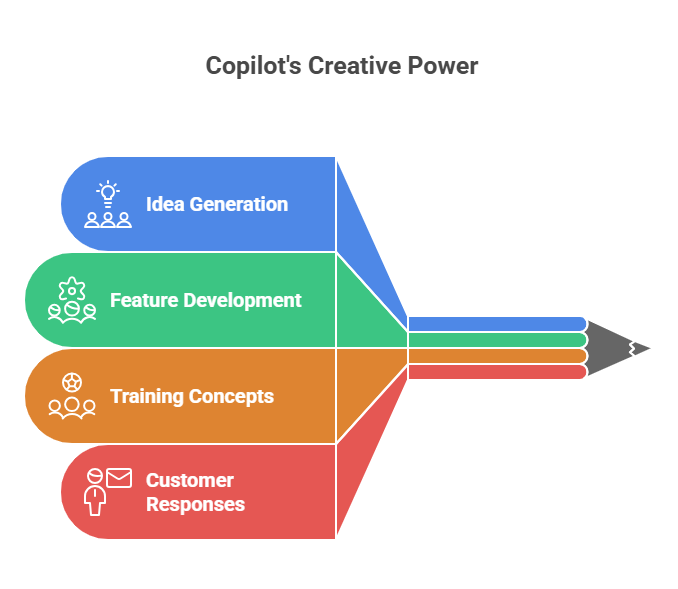
This usage of Copilot can significantly accelerate the initial stages of work. One internal team at Microsoft even used Copilot to come up with fun concepts for a three-week training program (“Camp Copilot”) by asking for interactive summer training ideas. The results can get you 70-80% of the way there – in one example, a user provided Copilot with company guidelines and had it draft a response to a customer complaint; the Copilot draft was about 80% complete, needing only minor refinement by the human user. That shows how Copilot can handle the heavy lifting of creative drafting, whether it’s an initial proposal, a catchy email to customers, or even a first pass at an FAQ. While you will always add your human touch and expertise to finalize the output, Copilot’s ability to generate content and ideas quickly makes it an excellent brainstorming partner. For any team seeking innovation or just trying to write more engaging content, leveraging Copilot for idea generation is a best way to use Copilot that can lead to faster and better outcomes.
8. Plan Projects and Next Steps with Copilot
After meetings or brainstorming sessions, turning ideas into an action plan can be a daunting task. Copilot can help here by organizing outcomes and proposing next steps. For instance, if you just finished a project meeting, you can ask Copilot to “Summarize the meeting and draft an action plan.” It will outline the key decisions made and suggest tasks or next steps assigned to each stakeholder. This is immensely helpful for project managers and operations teams to ensure nothing falls through the cracks. In fact, about 67% of professionals reported using Copilot to develop action plans after their meetings – a testament to how valuable it is in project planning and follow-ups.
Copilot can also assist in preparing for upcoming work. Need a project plan or a simple project proposal? Describe your project goals and constraints to Copilot, and it can draft a basic project outline or checklist. It might list objectives, deliverables, timelines, and even potential risks based on similar projects it has seen in your organization’s documents. For team leaders, another best way to use Microsoft Copilot at work is for performance and planning tasks – for example, many managers use Copilot to help draft employee performance review notes or one-on-one meeting agendas (nearly 46% of managers have used Copilot to prepare evaluation notes). By using Copilot to structure plans and next steps, you ensure clarity and save time on administrative follow-up. It’s like having a project coordinator that turns discussions into to-do lists instantly, keeping everyone on track.
9. Streamline HR Processes with Copilot (Policies, Training, and Hiring)
Human Resources teams can greatly benefit from Copilot by automating and streamlining content-heavy processes. HR professionals handle a lot of documentation – from writing company policies and employee handbooks to crafting job descriptions and training materials – and Copilot can expedite all of these. For example, if HR needs to update the parental leave policy, Copilot can draft a policy document based on key points or even suggest improvements by comparing with best practices. If you need a job description for a new role, Copilot can generate a solid first draft when you input the role’s responsibilities and required skills. In one study, HR departments were already using Word Copilot for policy and job description drafting about 25% of the time, indicating how quickly it’s becoming part of the workflow.
Copilot can also help with training and onboarding. HR can ask Copilot to create a new hire onboarding checklist, a training outline for a certain skill, or even generate quiz questions for a training module. It ensures the content is consistent and comprehensive by pulling from existing company knowledge. Another area is internal communications: Copilot can draft company-wide announcements or FAQs (for example, an FAQ about a new benefit program) so that HR can communicate changes clearly. And when it comes to employee support, Copilot can be used in a chat interface to answer common employee questions (like “How do I enroll in benefits?”) by pulling answers from HR documents – this frees up HR staff from repetitive queries. Overall, the best ways to use Copilot at work in HR involve letting it handle the first draft of any content or answer, which HR can then review. This augments the HR team’s capacity, allowing them to focus more on people strategy and less on paperwork.
In practice, these capabilities become even more powerful when Copilot is combined with purpose-built HR solutions. At TTMS, we support organizations with AI4Hire – an AI-driven approach to HR processes built on Microsoft 365 and Copilot. AI4Hire helps HR teams accelerate hiring, onboarding, and internal communication by intelligently connecting Copilot with structured HR data, templates, and workflows. Instead of starting from scratch, HR teams work with AI that understands their organization, roles, and policies.

10. Empower Finance Teams with Copilot (Budgets, Reports, Forecasts)
Finance professionals can leverage Microsoft Copilot as a financial analyst that never sleeps. Budget planning, forecasting, and reporting are areas where Copilot can save significant time. You can have Copilot analyze your financial data and produce a summary report – for instance, “Review last quarter’s financial performance and list any areas of concern.” It will read through the Excel sheets or Power BI data and highlight trends, outliers, or opportunities. Copilot can also assist in building forecasts: provide it with historical data and ask for projections for the next quarter or year, and it will generate a forecast (with the assumptions clearly stated). Finance teams find that Copilot helps them make data-backed decisions faster – it can automatically suggest budget allocations based on past spending patterns or flag anomalies that might indicate errors or fraud.
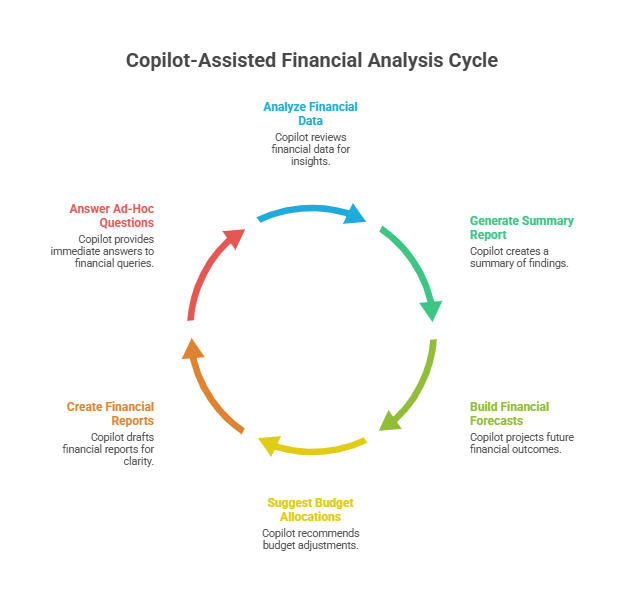
Another great use case is financial report creation. Instead of manually writing the first draft of a monthly finance report or an executive summary, ask Copilot to draft it. For example, “Summarize this month’s revenue, expenses, and key insights for our finance report” – Copilot will use the data to produce a narrative that you can fine-tune. It ensures consistency in reporting and can even format the information in tables or bullet points for clarity. Copilot is also useful for answering ad-hoc financial questions; a CFO could ask, “How does our current spending on software compare to last year?” and get an immediate answer drawn from the books. By using Copilot, finance teams can shift their focus from gathering and organizing numbers to interpreting and strategizing on them. It’s not about replacing the finance analyst, but rather giving them a powerful tool to do the heavy lifting. The result is faster close cycles, more frequent insights, and more agility in financial planning – truly one of the best ways to use Microsoft Copilot at work for data-driven departments.
Conclusion: Embrace Copilot to Transform Your Workday
Microsoft Copilot is more than just a novelty – it’s quickly becoming an essential co-worker across industries. As we’ve seen, the best ways to use Copilot at work span everything from daily email triage to complex data analysis. Early adopting organizations are already reaping benefits: 78% of businesses using Copilot have seen noticeable productivity gains, and Microsoft estimates a potential 10-15% boost in overall productivity from Copilot assistance. By integrating Copilot into your team’s routine – be it for writing, number-crunching, brainstorming, or planning – you empower your employees to focus on high-value work while the AI handles the heavy lifting. The best way to use Microsoft Copilot ultimately comes down to incorporating it into tasks that consume a lot of your time or mental energy. Start with the use cases that resonate most with your pain points and watch how this AI assistant amplifies your efficiency.
Ready to revolutionize your workday with AI? Microsoft 365 Copilot can help your company work smarter, not harder. For expert guidance on adopting Copilot and other Microsoft 365 tools, visit TTMS’s Microsoft 365 page to learn more about unlocking productivity with Copilot.

FAQ
What is Microsoft 365 Copilot and how does it work?
Microsoft 365 Copilot is an AI-powered assistant embedded in Microsoft 365 apps (such as Word, Excel, PowerPoint, Outlook, Teams, etc.) that helps users with content generation, data analysis, and task automation. It’s powered by advanced large language models (like GPT) alongside your organization’s data and context. Essentially, Copilot “knows” your work data (emails, files, meetings) through Microsoft Graph and uses that context to provide helpful outputs in the flow of work. You can interact with Copilot by issuing natural language requests – either through a chat interface or by clicking buttons for suggested actions. For example, you might ask Copilot to draft a document, analyze a spreadsheet, summarize a conversation, or answer a question. Copilot then processes your prompt with AI, combines it with relevant information it has access to (respecting your permissions), and generates a response within seconds. Think of it as a smart colleague who is available 24/7: it can pull up information, create content, and even execute some tasks on your behalf. You don’t have to be technical to use it – if you can describe what you need in words, Copilot can usually handle it. By leveraging both the power of AI and the specific knowledge within your organization, Copilot helps everyone work more efficiently and effectively.
How can our organization get Microsoft Copilot – is it included in Microsoft 365?
icrosoft 365 Copilot is currently offered as an add-on to commercial Microsoft 365 plans (typically for Enterprise customers). It’s not included by default in standard Office subscriptions; businesses need to license it separately per user. In practical terms, if your company uses Microsoft 365 E3 or E5 (or similar enterprise plans), you would purchase the Copilot add-on for the users who need it. Microsoft has set a price for Copilot – as of 2024, it’s about $30 per user per month on top of your existing Microsoft 365 subscription. This pricing could evolve with new bundles or “Copilot for X” product offerings, but the key point is that Copilot is a premium feature. To get started, you should contact your Microsoft account representative or go through the Microsoft 365 admin center to inquire about enabling Copilot. Microsoft may have certain prerequisites (for example, using Microsoft 365 cloud services like OneDrive/SharePoint for content, since Copilot needs access to your data to be useful). Once licensed, admins can enable Copilot features for users in the tenant. It’s wise to start with a pilot program: enable Copilot for a subset of users or departments, let them explore its capabilities, and then plan a broader rollout. Also, consider user training (Microsoft provides guidance and resources) so that employees know how to invoke Copilot in the apps they use. In summary: yes, your organization can get Copilot today if you have a qualifying Microsoft 365 subscription and are willing to pay the add-on fee; it’s a matter of adjusting your licensing and rolling it out with proper change management.
Is Microsoft Copilot secure? How does it handle our company data and privacy?
Microsoft 365 Copilot is designed with enterprise-grade security and privacy in mind. From a data privacy perspective, Copilot does not use your private organizational data to train the underlying AI models – your prompts and the content Copilot generates stay within your tenant and are not fed into the public model learning cycle. This means your company’s sensitive information isn’t inadvertently improving the AI for others; you own your data. Copilot also respects the existing permissions and access controls in your Microsoft 365 environment. It inherits your Microsoft 365 security boundaries, so if a user doesn’t have access to a certain SharePoint site or document, Copilot won’t retrieve or reveal that information to them. In practical terms, it will only draw from content the user could already access on their own. All Copilot interactions are processed in a secure, compliant manner: Microsoft has committed to not retaining your prompts or outputs beyond the service needs, and they undergo filters to reduce any harmful or sensitive outputs. Moreover, there’s a “Copilot control panel” for IT admins to monitor and manage Copilot usage across the organization – admins can set policies, monitor logs, and even adjust or limit certain functionalities if needed. As with any AI, there are considerations: Copilot might occasionally produce incorrect or AI-“hallucinated” information, so users are encouraged to verify important outputs. However, from a security standpoint, Copilot operates within the trusted Microsoft 365 framework. Microsoft has built it under their “secure by design” principles, meaning it should meet the same compliance and security standards as the rest of M365. Companies in highly regulated industries should review Microsoft’s documentation (and any compliance offerings) to ensure Copilot aligns with their specific requirements, but generally, you can be confident that Copilot treats your internal data carefully and doesn’t expose it externally.
Will Copilot replace jobs or make any roles obsolete?
Microsoft Copilot is a tool designed to augment human work, not replace humans. It’s important to understand that Copilot acts as an assistant – it can draft, summarize, and automate parts of tasks, but it still relies on human oversight and expertise to guide it and verify outputs. In many ways, Copilot takes over the more tedious and time-consuming aspects of work (like first drafts, data sifting, note-taking, etc.) so that employees can focus on higher-level, strategic, or creative tasks. Rather than eliminating jobs, it shifts some job duties. For example, a marketer using Copilot can produce content faster, but they still provide the creative direction and final approval. A financial analyst can let Copilot generate a draft report, but the analyst is still needed to interpret the nuances and decide on actions. In studies so far, organizations using Copilot report improved productivity and even reduced burnout – employees can get more done with less stress, which can actually enhance job satisfaction. Certainly, roles will evolve: routine writing or reporting tasks might be heavily assisted by AI, which means people will need to adapt by strengthening their oversight, critical thinking, and AI-guidance skills. New roles might emerge too, like AI content editors or prompt specialists. The introduction of Copilot is comparable to past innovations (spell-check, calculators, etc.) – those tools didn’t eliminate the need for writers or mathematicians; they made them more efficient. Of course, companies should communicate with their workforce about how Copilot will be used, provide training, and set clear guidelines (for instance, “Copilot will handle initial drafts, but employees are responsible for final output”). In summary, Copilot is not a replacement for jobs; it’s a productivity aid. When used properly, it can free up employees from drudgery and empower them to concentrate on more valuable, human-centric aspects of their jobs, like decision-making, innovation, and interpersonal communication.
ow can we ensure we get the best results from Copilot – any tips for using it effectively at work?
To get the most out of Microsoft Copilot, it helps to approach it thoughtfully and proactively. Here are some tips for effective use:
- Learn to write good prompts: While Copilot often works with one-click actions, you’ll unlock more potential by asking clear, specific questions or instructions. For example, include details in your prompt (“Summarize the Q3 sales report focusing on Europe and highlight any issues” yields a better result than just “Summarize this”). You don’t need to be a “prompt engineer,” but practicing how you ask Copilot for help will improve outputs.
- Review and refine outputs: Remember Copilot is a co-pilot, not an autopilot. Always review the content it generates. Use your expertise to fact-check data and tweak the tone or details. Copilot might get you 80% of the way there, and your input covers the last mile to perfection. Over time, as you correct Copilot’s drafts, it can adjust (within a session) to your style and preferences.
- Integrate Copilot into daily workflows: Encourage your team to use Copilot consistently for suitable tasks – e.g., start your morning by having Copilot summarize new emails or your upcoming day’s meetings, use it during meetings to capture notes, and after working on a document, have it review or format the text. The more it’s woven into routine processes, the bigger the cumulative time savings. Microsoft’s own teams identified top daily Copilot scenarios (like catching up on emails, drafting replies, summarizing meetings) – start with these everyday use cases.
- Provide context when possible: Copilot works best when it has context. If you’re drafting an email, consider replying within the thread so Copilot sees the conversation. If you’re asking it to create a document, give it bullet points or a brief outline of what you want included. For data analysis, ensure your Excel sheets have clear headers and labels. The more context Copilot has, the more relevant and accurate its output will be.
- Stay aware of updates and capabilities: Copilot and its features are evolving. Microsoft regularly updates Copilot with new abilities (for example, integrating with more apps or improving the AI model). Keep an eye on Microsoft 365 Copilot announcements or your admin communications so you know about new commands or integrations. Also, take advantage of Microsoft’s learning resources or training for Copilot – a little up-front learning can reveal features you didn’t know existed (like the “/” command for Context IQ smart search in Teams, which can supercharge Copilot’s responses). By staying informed, you can continuously discover the best ways to use Copilot as it grows.
In short, treat Copilot as a partner. Be clear in what you ask, always double-check its work, and incorporate it into your routine where it makes sense. With good practices, Copilot can significantly amplify your productivity and become an indispensable part of your workday.